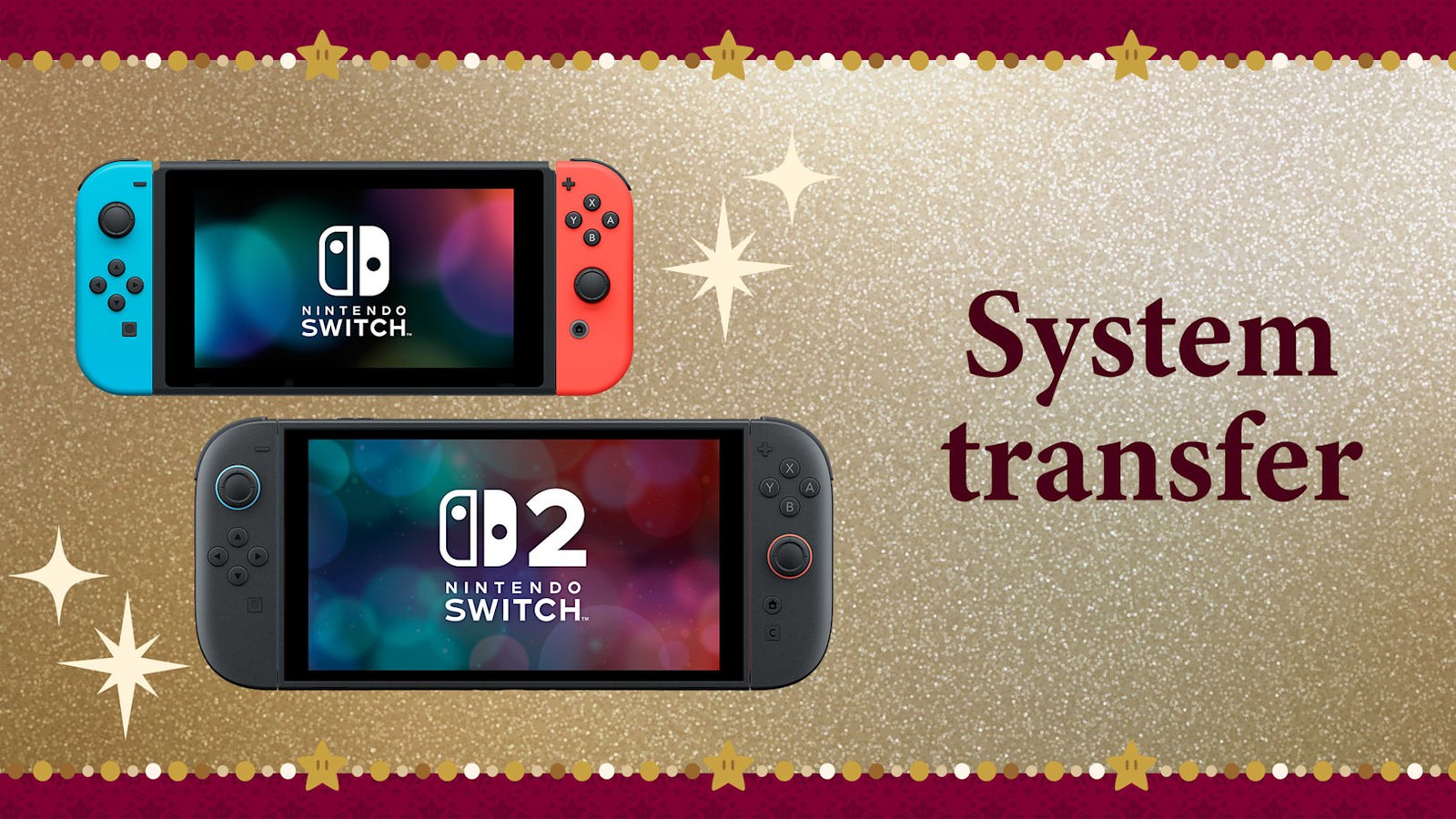
When you set up a Nintendo Switch 2, the system prompts you to run a System Transfer, and the choice you make there decides whether your old Switch keeps its data or gets wiped. There are two official routes: a local transfer between the two consoles, or a server transfer that uploads the source console to Nintendo’s servers first. They are not interchangeable, and choosing the wrong one can erase a console you meant to keep.
Choose the transfer method first
The decision is simpler than the setup menus make it look. If you still have your original Switch and plan to keep it, use local communication. Nintendo recommends this route whenever both consoles are available, and it is the only one that leaves cloud-backed saves on the source console. Save data for games that support Save Data Cloud Backup is copied to the Switch 2 and stays on the old system, while saves for unlinked accounts and games without cloud support move off the source.
Use the server route only when you must give up the old console before getting the Switch 2, such as a trade-in or sale. Uploading the transfer initializes the source console and resets it to factory settings, deleting everything on it. Nintendo stores the uploaded package for up to one year and shows a Download Deadline during setup, so you must retrieve the data on the new console before that date passes.
What to have ready for a local transfer
Gather the source Switch and the target Switch 2, keep both plugged into AC power, and confirm both are connected to the internet and running current system software. You also need the Nintendo Account linked to the user on the source console. If you want transferred downloads and captures on expandable storage, have a microSD Express card ready; the Switch 2 does not use the standard microSD cards that fit the original Switch.
The transfer prompt appears during the Switch 2’s initial setup. If you already completed setup, a full server transfer requires initializing the Switch 2 and starting again, so individual save transfer or cloud saves may be the better fix when only a few files are missing.
Local transfer steps
Start on the Switch 2 and follow setup until the System Transfer screen appears. Connect to the internet, install any system update, then select Start System Transfer. Insert a microSD Express card now or select Skip, then sign in with the same Nintendo Account used on the source Switch. Select Next, place both consoles nearby, and select Done. On the original Switch, open System Settings, select System, then System Transfer to Nintendo Switch 2, and confirm the same prompts. Choose whether to redownload software and move Album data, wait for the consoles to connect, then select Start Download on the Switch 2. The new console restarts and finishes the transfer after rebooting. Do not power off or format either system while it runs.
What carries over and what does not
A full local transfer moves all users, linked Nintendo Accounts, friends, play activity, supported save data, system-memory screenshots and videos, registered network devices, Parental Controls, Mii data, eligible virtual-game-card status, and HOME Menu icon order. Digital software is tied to the account and redownloads after setup, which needs an internet connection.
Bluetooth audio pairings, custom controller button mappings, and language, region, time, and time-zone settings do not transfer, so you will reconfigure those on the Switch 2. Animal Crossing: New Horizons save data is a special case with its own island and resident transfer steps, so follow Nintendo’s dedicated instructions for that game rather than the general process.
After the transfer
Confirm every expected user appears, open important games to check their saves, look at the Album, and let digital titles finish redownloading. Re-pair Bluetooth audio, recreate any controller mapping, and set language, region, and time manually. Keep the original Switch untouched until those checks pass. If a save is missing, stop before creating new data in that game and contact Nintendo Support with the account name, game title, transfer method, and any error code.
Sources
- Reporting source: GamerHeadlines
- Official support guide: Nintendo Support
- Official overview: Nintendo